Is Apple Pay safe? Complete guide to Apple’s mobile payment security


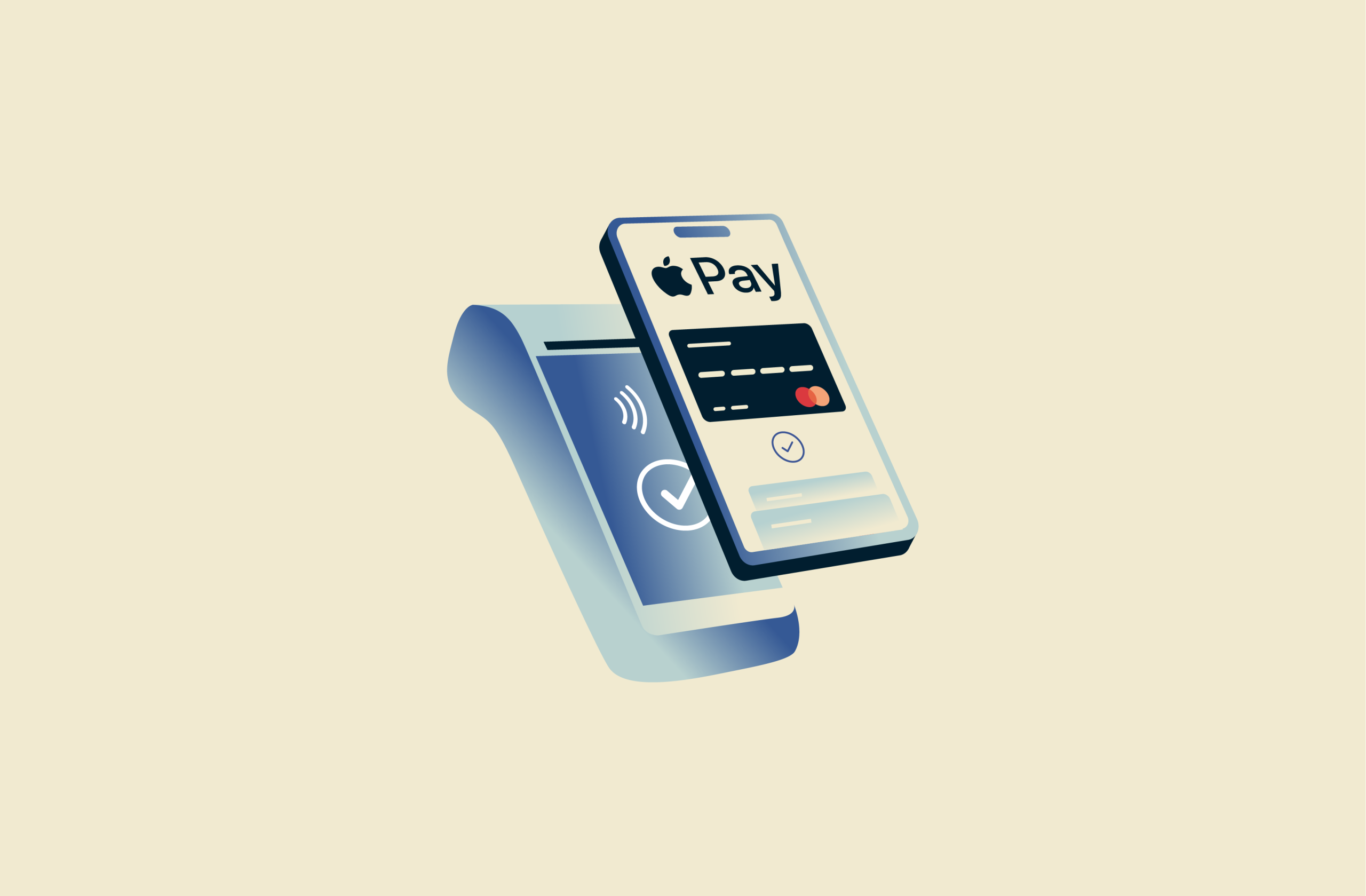
Apple Pay makes it easy to pay straight from your Apple devices, whether you’re shopping in-store or online. But when your phone or watch is holding your banking details, it’s fair to ask if it’s completely safe, even if the brand behind it is generally trusted.
In this guide, we’ll break down how Apple Pay works, how its security architecture protects your data, and how it compares with other mobile payment methods. You’ll also see what risks still exist with any digital wallet and what you can do to reduce them.
Please note: This information is for general educational purposes and not financial advice.
What is Apple Pay?
Apple Pay is a built-in mobile payment and digital wallet service on Apple devices. Instead of using a physical card or typing in your card details at checkout, you can pay directly with your iPhone, Apple Watch, or other compatible devices.
How Apple Pay works
Apple Pay eliminates the need for your card to interact directly with a payment processor. Your real card data never enters the payment stream. Here’s how it works:
- Card tokenization: When you add a card, your bank or card issuer turns your real card number into a device-specific token called a Device Account Number (DAN). This token matches your real card but works only on that specific device. The DAN is stored in the Secure Element, a dedicated secure chip on your device that’s isolated from your device’s operating system and isn’t backed up to iCloud.
- Identity verification: For most payments on iPhone and iPad, Apple Pay requires a biometric check (Face ID or Touch ID) or your device passcode before a transaction is authorized. On Apple Watch, payments require that the watch be unlocked with a passcode and on your wrist, and you confirm them by double-clicking the side button. On Mac, payments are confirmed via Touch ID or a Bluetooth-connected iPhone or Apple Watch using the same Apple Account, while Vision Pro devices verify your identity using Optic ID.
- Token and cryptogram: When you pay, the device transmits the DAN (token) and a one-time cryptogram generated for that transaction. Intercepting this data is pointless because the cryptogram can’t be reused or altered without failing verification.
- Bank validates request: The payment network checks that the cryptogram matches what the Secure Element on that device should generate for that token and transaction amount. If it passes, your bank links the token back to your card and authorizes the purchase.
- Merchant gets approval only: The merchant completes the sale using the token rather than the real card number. Even if the store's systems are ever breached, the stolen information is unusable for fraud.
Note: Apple also offers an option called Express Mode for some transit cards (and other passes in your Wallet, like tickets or hotel room keys), but these are typically used for low-value transactions and restricted to settings like tapping into public transport. When Express Mode is enabled, you can make these transactions without authenticating with Face ID, Touch ID, or your passcode.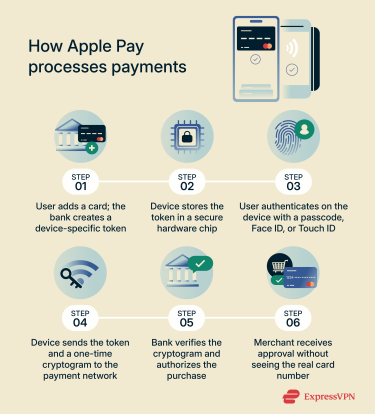
Devices that support Apple Pay
Apple Pay works on a range of Apple devices, as long as you’re using a compatible model, a supported card from a participating bank, and an up-to-date operating system.
- iPhone: All iPhone models with Face ID and Touch ID, except iPhone 5s.
- iPad: iPad Pro, iPad Air, iPad, and iPad mini models with Touch ID or Face ID. iPads don’t support near-field communication (NFC), the short-range wireless tech used for tap-to-pay, so they can’t be used for tap-to-pay in physical stores.
- Apple Watch: Apple Watch Series 1 and later, but it must be paired with a compatible iPhone first.
- Mac: Mac models with Touch ID, Mac models introduced in 2012 or later when used together with an Apple Pay-enabled iPhone or Apple Watch, and Mac computers with Apple silicon paired with a Magic Keyboard with Touch ID.
- Apple Vision Pro: Supports Apple Pay in apps and on the web.
Is Apple Pay safe?
In general, yes. Apple Pay is designed so that your actual card number is never shared with merchants and doesn’t travel through the payment system in plain form. Instead, it relies on device-specific tokens, on-device biometrics, and your Apple Account security to keep your real card number protected, even if payment data is compromised.
Core security features of Apple Pay
Tokenization and encryption
When you add a card, your card details are encrypted on the device and sent to Apple servers, which forward the encrypted information to your card network or issuer for verification and tokenization.
Once approved, the issuer generates a DAN (a device-specific token) and sends it, still encrypted, back to your device. Here, it’s provisioned into payment applets (secure software components that manage payment credentials and transactions) within the Secure Element on your device. These applets are provided and certified by card networks or issuers, and only they hold the keys needed to decrypt and manage data within their security domains.
Apple doesn’t store your original card number and doesn’t have the keys required to access or recreate it from the token. Instead, the DAN stays inside the Secure Element and is used there to generate payment data.
A second hardware component, the Secure Enclave, handles sensitive operations, such as biometric authentication and key management. The Secure Enclave and the Secure Element both include long-term public keys built in at the factory. When they need to communicate, they use these keys with the Elliptic Curve Diffie–Hellman (ECDH) protocol to create a shared, secure communication channel.
Learn more: You can read more about the key exchange methods in our detailed end-to-end encryption (E2EE) guide.
When you first set up Apple Pay, the Secure Enclave generates an Authorization Random (AR) value that remains in place as long as Apple Pay is enabled and protected by anti-rollback controls. If Apple Pay is ever reset and a new AR is issued, the Secure Element automatically invalidates any cards linked to the old one. Those cards can’t be used again until you re-add them, which prevents older data from being reused.
For each transaction, the payment applet in the Secure Element generates a one-time cryptogram. It’s based on a transaction counter, an issuer key, and extra data from the terminal (for tap-to-pay) or an anti-replay value (for in-app payments).
This cryptogram is sent together with the DAN as a dynamic security code. The payment network and issuer use it to verify that the transaction is genuine, tied to the correct device and token, and hasn’t been reused or replayed.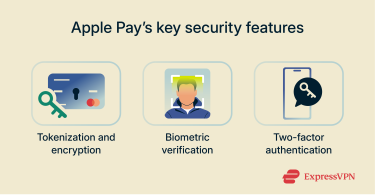
Biometric verification
Apple Pay uses Face ID, Touch ID, or Optic ID to confirm that it’s really you before a payment goes through. If the biometric check fails, your device prompts you to enter the passcode, which is also required if you haven’t set up biometrics.
For most in-store payments, Apple also requires a deliberate “secure intent” gesture: you double-click the side (or Home) button before Face ID or Touch ID can authorize the transaction. The Secure Enclave treats this as an explicit user action, so a payment can’t silently go through in the background.
Your biometric templates stay inside the Secure Enclave and aren’t shared with apps, merchants, or even Apple. When an app or payment requests Face ID or Touch ID authentication, it only receives a simple yes/no response, not your fingerprint or face data.
Two-factor authentication
Two-factor authentication (2FA) is now the default security method for most Apple Accounts, and Apple Pay is one of the services that requires it. When 2FA is enabled, your Apple Account password alone isn’t enough for someone to access your account. To sign in on a new device or in a web browser, they’d also need the six-digit verification code sent to one of your trusted devices or phone numbers.
This makes it much harder for someone who has only your password to access your Apple Account or change your account settings.
What happens if you lose your phone?
If you lose your iPhone or Apple Watch and Find My is enabled, you can use it to lock down Apple Pay quickly. From the Find My app on another Apple device, or from icloud.com, select the missing device and turn on Lost Mode. This suspends Apple Pay on that device without cancelling your cards, and you can turn Apple Pay back on if you recover the device.
If Express Mode is enabled for transit, this can theoretically still be used while the device is locked. So, turning on Lost Mode immediately is safest, as it suspends Express Mode and prevents any further transactions.
You can also log into your Apple Account in any browser and remove that device’s ability to make payments with the credit, debit, and prepaid cards you were using with Apple Pay.
If you erase the device remotely using Find My, that also removes the ability to pay with those cards on that device. Behind the scenes, your bank or card issuer suspends those cards from Apple Pay on that device, even if it’s offline. If you later find the device, you can add your cards back to Wallet.
Learn more: Read our detailed guide on what to do if you lose your phone or it gets stolen.
Can Apple Pay be hacked?
Apple’s design makes it very difficult to attack Apple Pay directly. In practice, most fraud happens around Apple Pay rather than within it, by targeting your Apple Account, your device, or your bank’s verification process.
- Apple Account takeover: If an attacker gains control of your Apple Account and manages to get past 2FA (for example, by also accessing a trusted device), they may be able to set up your cards on their own device, depending on how your bank verifies new Apple Pay enrollments.
- Stolen device with known passcode: If a thief steals your iPhone and already knows the device passcode, they can authenticate as you and use Apple Pay on that device until you lock or erase it remotely.
- Weak bank verification: Some issuers rely on simple checks, like SMS codes or basic identity questions, when adding a card to Apple Pay. If those checks are tricked or bypassed, a criminal could provision a real card to their own device.
- Social-engineering authorization fraud: Criminals may send convincing Apple phishing emails or pose as Apple or your bank over the phone or via SMS. Their goal is to pressure you into sharing verification codes or tapping “Allow,” effectively approving card additions or Apple Account changes for them.
- Jailbroken or compromised devices: Jailbreaking removes many of iOS’s built-in protections and can allow malware to steal credentials or interfere with what you approve. Apple Pay is designed to run on secure, non-jailbroken devices, so using it on a modified device increases your risk.
Learn more: Find out how to secure your iPhone from cybercriminals.
Apple Pay vs. other payment methods
Traditional card payments and Apple Pay use the same banking networks, but they can differ in how they protect your information and how far a single breach can be abused.
Apple Pay vs. credit cards
Traditional credit cards share the same long card number with every merchant you pay and every site where you save your details. Merchants are required to encrypt this information during transmission and often when stored, following industry standards like the Payment Card Industry Data Security Standard (PCI DSS).
However, despite these protections, card numbers can still be exposed through data breaches, either due to vulnerabilities in merchant systems, compromised point-of-sale terminals, or insider threats. If your card number is exposed, it could potentially be reused for fraudulent purchases until you or your bank spots the activity and blocks the card.
Criminals can capture credit card numbers through skimmers (illicit card readers attached to ATMs or payment terminals), hidden cameras, or compromised point-of-sale systems in shops and restaurants. Once they have the number and security code, your card could potentially be reused for credit card fraud across multiple websites and merchants. That said, many banks do use additional security measures like 3D Secure (a form of 2FA) for online purchases to mitigate fraud.
By contrast, Apple Pay uses the tokenization and one-time codes described earlier, so merchants never see your actual card number from those transactions. If a merchant that processes only your Apple Pay payments is breached, attackers gain transaction records and limited tokenized data, but not raw card numbers or CVVs, which they can reuse on other sites.
That doesn’t make you immune to fraud, but it means attackers are more likely to focus on other methods, like phishing, Apple Account takeover, or banks with poor verification, rather than simply reusing stolen card numbers.
Online vs. in-person use
A physical card uses the same number whether you pay in-store or online, so a leak in one channel can often be abused in the other.
Apple Pay reduces that crossover risk by handling physical and online payments through different approval paths. In stores, you can only use Apple Pay with certified contactless terminals that can initiate a valid Apple Pay transaction. For online and in-app payments, merchants must complete a formal setup and domain verification process before they can display the Apple Pay button and generate a payment request.
This domain verification doesn’t change the bank side of the transaction, but it helps filter out impostor or fraudulent sites that might otherwise trick you into authorizing a payment.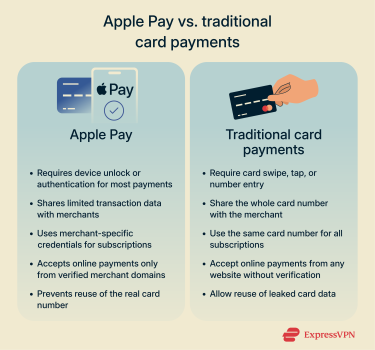
Apple Pay vs. debit cards
With debit cards, any unauthorized use is deducted from your bank balance. Even if your bank offers protections, spending limits, or alerts, successful debit card fraud can still tie up your own money while the bank investigates and refunds it.
Using that same debit card through Apple Pay changes how it’s exposed. You pay from a secure wallet on your device instead of sharing your card details or PIN at every terminal or checkout screen.
For recurring payments like subscriptions, the card issuer and payment network can assign merchant-specific payment tokens when the payment is set up via Apple Pay, so one compromised merchant doesn’t automatically put every other payment at risk.
Apple Pay vs. digital wallets
Apple Pay is tightly integrated with Apple’s secure hardware, while other major digital wallets combine cloud-based accounts with device-level protections. Here’s a brief breakdown of how Apple Pay compares with other popular digital wallets:
| Where payment data is stored | How payments are approved | Can hold money or send funds | Device support | |
| Apple Pay | Device-specific payment tokens in the Secure Element on Apple devices | Biometrics or passcode + a button gesture | Doesn’t hold a balance; used to pay with existing cards (Apple Cash balance available in the U.S.) | iPhone, iPad, Mac, Apple Watch, Apple Vision Pro |
| Google Wallet / Google Pay (GPay) | Payment methods in a Google Payments profile linked to a Google Account, tokenized on compatible devices | Device screen unlock via PIN, pattern, password, or biometrics | Doesn’t store money but supports money transfers in some regions | Android phones, Wear OS smartwatches, and some Fitbit devices |
| Samsung Wallet | Device-specific payment token stored on the Samsung device | Fingerprint, iris scan (on some models), or PIN | Doesn’t store money, but can transfer it through Tap to Transfer | Supported Samsung Galaxy phones and Galaxy watches |
| PayPal | Card and bank details in a PayPal account in the cloud; merchants typically don’t receive your card number. | Log in with email/password or passkey, often with optional 2FA or risk-based one-time codes | Can store, send, and receive money | Web browsers and PayPal apps on iOS and Android |
Practical tips to keep Apple Pay safe
Apple Pay already reduces a lot of payment risk, but your setup and daily habits still matter. These steps focus on the parts you control: your device, Apple Account, network, and when Apple Pay should or shouldn’t be active.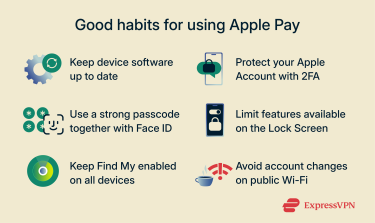
Secure setup process
A secure Apple Pay experience starts before your first payment. The initial configuration determines how much control you retain over your devices, accounts, and payment activity, so strengthening this foundation eliminates the most easily exploited gaps.
- Update your software: Install the latest iOS, watchOS, macOS, or visionOS release and turn on automatic updates so you always get new security fixes without having to remember.
- Lock down your Apple Account: Use a strong, unique password, enable 2FA, and register at least one trusted phone number to receive verification codes.
- Check account alerts: Look out for unexpected sign-in alerts or password-change notifications. If you don’t recognize an event, change your Apple Account password immediately.
- Only use Wallet to add cards: Add cards only from Settings or the Wallet app on your device, or from your bank’s official app. That keeps you away from fake “add your card to Apple Pay” links in emails or messages.
- Keep Find My enabled: Make sure the device appears in Find My so you can lock it or manage Wallet items remotely if you lose your device.
- Review which cards you've set for Express Mode: If you’ve enabled Express Mode, remember that it allows certain transactions without unlocking your device. Go to Settings, then Wallet & Apple Pay, and disable it if you prefer a stricter security setting.
Face ID and passcode best practices
Your device unlock method determines who can approve Apple Pay activity, so the goal is to make unauthorized use difficult. The same settings that harden iPhone security also strengthen Apple Pay’s.
- Use a lengthy numeric or alphanumeric passcode: By default, iOS uses a 6-digit numeric passcode, but you can change this to a custom numeric or alphanumeric code to make it stronger. This can resist quick-guessing attempts and prevent rapid brute-force attacks.
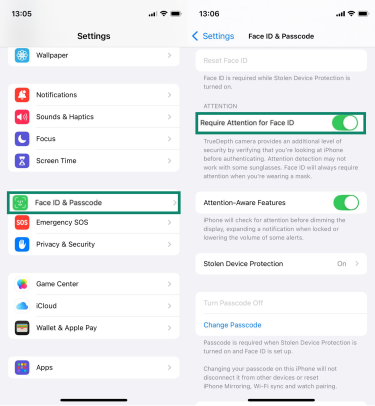
- Enable “Require Attention for Face ID”: This forces the device to verify that you are actively looking at it before it unlocks. To turn it on, go to Settings > Face ID & Passcode > Require Attention for Face ID.
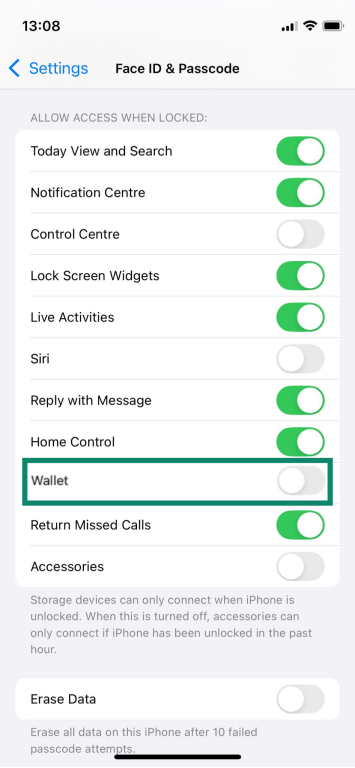
- Limit lock-screen access: Turn off features you don’t need when the device is locked, including Wallet access, so approval requires full device entry. Go to Settings > Face ID & Passcode. Scroll to the Allow Access When Locked section and turn off the toggle for Wallet.
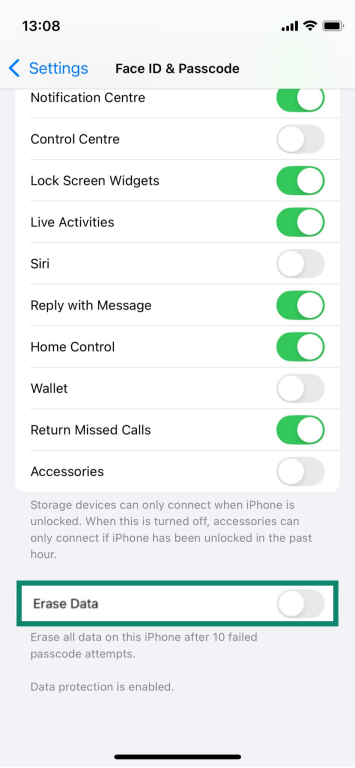
- Consider auto-wipe after failed attempts: You can set the iPhone to wipe itself after 10 failed passcode attempts, so repeated guesses can’t reach the correct code. Go to Settings > Face ID & Passcode and turn on the toggle for Erase Data.
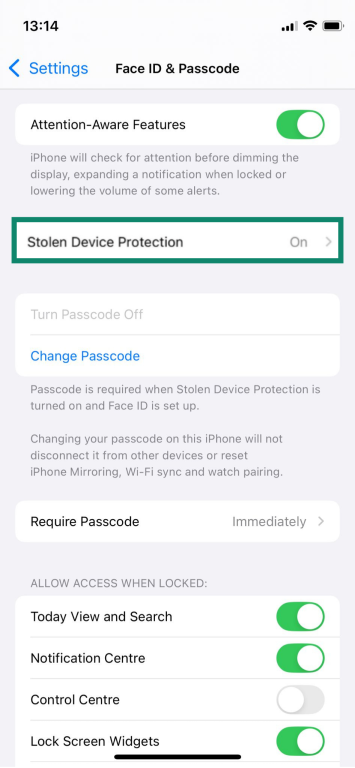
- Use Stolen Device Protection when available: This adds extra requirements, like Face ID at familiar locations, before anyone can change your Apple Account details if they know your passcode. Go to Settings > Face ID & Passcode and make sure that the Stolen Device Protection is on.
Learn more: Check out how to change iPhone privacy settings for better security.
Using Apple Pay on public Wi-Fi: Do or don’t?
Apple Pay doesn’t send your actual card number or raw credentials over the network, including on public Wi-Fi. Payments are authorized locally on your device with biometrics or a passcode, and the transaction data is encrypted and tokenized before it ever leaves your device. That means an attacker on public Wi-Fi can’t simply “sniff” an Apple Pay transaction to steal your real card details.
Where you should be careful is with your Apple Account, not tap-to-pay itself. Avoid adding new cards, changing Apple Account security settings, or signing into iCloud on public Wi-Fi without extra protection. Those actions involve account verification and could be targeted by fake hotspots or man-in-the-middle (MITM) attacks.
Using a trusted VPN like ExpressVPN on public Wi-Fi helps encrypt your traffic and makes it much harder for anyone on the same network to intercept or tamper with your account activity.
How to temporarily disable Apple Pay
If your device is with you, here’s how you can temporarily disable Apple Pay on each device:
iPhone and iPad
Go to Settings > Wallet & Apple Pay > Apple Pay Defaults, then turn off Double-Click Side Button.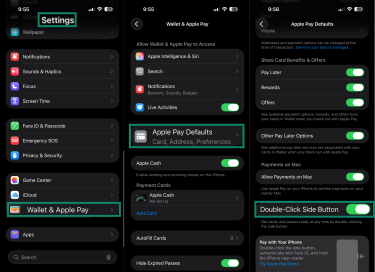
Apple Watch
To disable Apple Pay on your Apple Watch, open the Watch app on your iPhone, then tap Passcode. In the menu, toggle off Simple Passcode or Wrist Detection.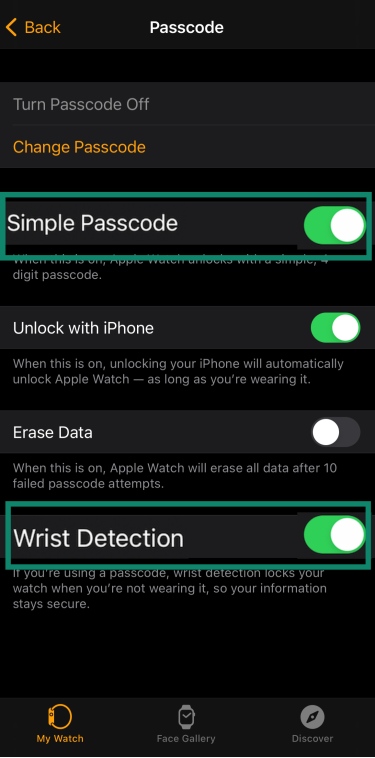
Mac and Apple Vision Pro
Go to System Settings > Wallet & Apple Pay and remove all the cards you’ve added.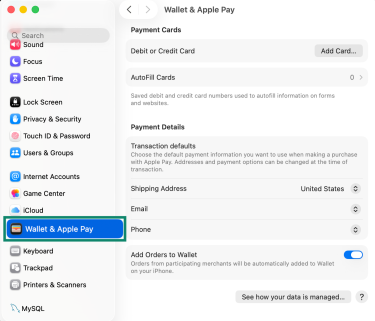
If your device is lost or stolen, sign into Find My on another Apple device, select the missing device, and enable Lost Mode. This immediately disables Apple Pay on that specific device.
Common concerns about Apple Pay
What if I’m scammed using Apple Pay?
Apple Pay’s security is designed to protect your card details and stop attackers from stealing your number or cloning your card. It can’t, however, prevent you from authorizing a bad payment in an Apple Pay scam, for example, sending money to a scammer, paying a fake online shop, or approving a subscription you didn’t fully understand. In those cases, what happens next depends on which account actually moved the money.
Before you do anything else, it’s a good idea to check what kind of payment it was. Look in Wallet and on your statement to see if the transaction shows as Apple Cash, Apple Card, another credit/debit card, or an “apple.com/bill” charge. That tells you who you need to talk to.
This allows you to handle it based on what you see:
- If you sent money with Apple Cash (U.S. only): Apple Cash is a peer-to-peer balance in Wallet that you can also spend with Apple Pay. If you see a transfer you didn’t authorize, Apple recommends that you secure your Apple Account (change the password, check trusted devices), then contact an Apple Cash Specialist to begin an investigation.
- If the charge used Apple Card (U.S. only): Apple Card is Apple’s own credit card issued by Goldman Sachs and works with Apple Pay. You can dispute suspicious transactions directly from Wallet by opening Apple Card, selecting the charge, and tapping Report an Issue.
- If the charge used another card in the Wallet: In this case, Apple Pay was just the way you paid; the money still came from your bank or card issuer. In these cases, it’s best to contact your card issuer to explain that the transaction was unauthorized or the merchant was fraudulent and follow their dispute or chargeback process.
- If the charge is from Apple itself: Go to Apple’s Report a Problem page, sign in with your Apple ID, and review the list of recent purchases. If you see something you didn’t mean to buy, you can request a refund where eligible and wait for Apple’s decision.
Does Apple issue refunds for fraud?
Apple Pay doesn’t hold your card balance or decide if card scams should get refunded. It just passes transactions to banks and card networks. The card issuers set the refund rules. For Apple Cash transactions, you can report the issue for investigation, but payments willingly sent, such as transfers later found to be part of a scam, might be harder to recover.
With Apple Card, disputes and fraud are handled under your Apple Card Customer Agreement with Goldman Sachs Bank.
FAQ: Common questions about Apple Pay safety
Is Apple Pay safer than credit cards?
Generally speaking, yes, Apple Pay can be safer than using a physical credit card. It keeps your actual card number out of every transaction and instead uses a device-specific token and one-time security codes. That way, merchants and attackers never see your real card number, even if systems are later breached.
Can I use Apple Pay on my Apple Watch safely?
Yes, as long as Wrist Detection and a passcode are enabled. Your Apple Watch locks automatically when you take it off, and Apple Pay can’t be used again until you unlock it on your wrist. That prevents someone from just putting on your watch and using it to pay.
Will my bank protect me if Apple Pay is compromised?
Your card issuer, not Apple, typically provides fraud protection for Apple Pay purchases. Your bank’s usual rules for unauthorized transactions, chargebacks, and liability should apply to Apple Pay transactions in the same way they do for your physical card. For specific rights and limits, you’ll need to check your card’s terms.
Can card skimmers read Apple Pay?
No. Traditional card skimmers are designed to read magnetic stripes or clone card data, but Apple Pay never sends that information. It uses encrypted near-field communication (NFC), a device-specific token, and one-time security codes that can’t be reused to clone a card.
Is Apple Pay safe for online shopping?
Yes, Apple Pay is safe for online shopping thanks to its core security features, including tokenization, encryption, biometric verification, and two-factor authentication (2FA). Only verified apps and websites can offer Apple Pay at checkout, and they receive just enough information to process the payment, not your underlying card number.
Take the first step to protect yourself online. Try ExpressVPN risk-free.
Get ExpressVPN