How to recover deleted files on iPhone: 7 fast ways that work


 Losing a file on your iPhone can feel final, but in many cases, it isn’t. Deleted photos, notes, documents, and other files often remain recoverable for a while. This guide walks you through practical ways to recover deleted files on an iPhone, including quick fixes and more in-depth recovery methods.
What happens when you delete files on an iPhone?
When you delete a file on an iPhone, iOS doesn't always erase it right away. Instead, many built-in apps move the file to a Recently Deleted folder within the app from which you deleted it. Photos, Files, and Notes all use this approach, and deleted items are typically kept there for up to 30 days. During that time, you can often recover something you removed by mistake. Once that window passes, or if you manually delete the item from the Recently Deleted folder, it’s permanently removed from that built-in recovery area. At that point, the file can’t be recovered through standard iPhone recovery features. On modern iPhones, recovery after permanent deletion is also harder because Apple uses hardware-backed encryption and per-file data protection keys. In practice, once a file is fully removed and no backup or Recently Deleted copy remains, recovering it directly from the device is unlikely.What to do before you start recovery
If you notice that important files have been deleted, a few quick steps can significantly improve your chances of recovering them.- Act quickly and limit iPhone activity: Avoid taking new photos, installing apps, or downloading large files. New data can overwrite the storage space freed up by deleted files, which may reduce your recovery options. For the same reason, hold off on clearing storage or making other major changes until you've finished your recovery attempts.
- Figure out where the file was originally stored: The recovery method depends on the app or service that hosted it. Photos, iCloud Drive files, notes, and message attachments are all handled differently, so identifying the source will point you to the right recovery steps.
- Check for backups before attempting recovery: Look for an iCloud or computer backup that was created before the file was deleted. Having a backup from before the deletion can make recovery much easier.
- Understand how iCloud sync affects deleted files: If iCloud sync was turned on for an app like Photos, Notes, or Files, deletions usually sync across devices signed into the same Apple Account. However, the deleted item may still be in that app's Recently Deleted folder (on any synced device or at iCloud.com) for up to 30 days.
- Don’t reset or restore the device too early: Restoring from a backup requires erasing everything currently on your iPhone and replacing it with the backup's contents. Before taking that step, make sure the backup was made before the deletion and that you've exhausted simpler recovery options, such as the Recently Deleted folder. If you decide to restore, save any newer data you want to keep first.
Method 1: Recover deleted files from Recently Deleted
This method is best for anyone who deleted files within the last 30 days and hasn't manually emptied the Recently Deleted folder. For Photos, Files, and Notes, this is usually the fastest and simplest option and should be tried first.Recover deleted photos and videos
- Open the Photos app.
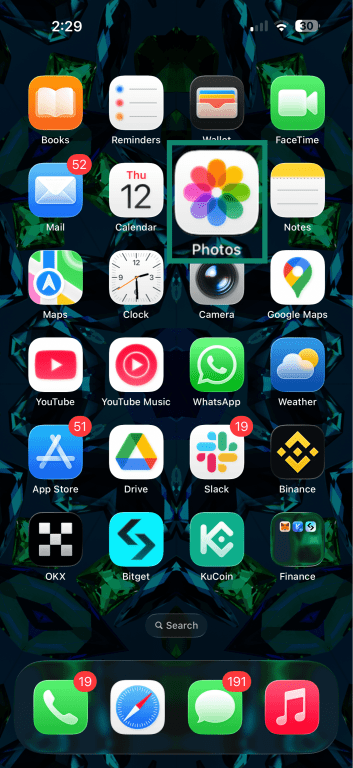
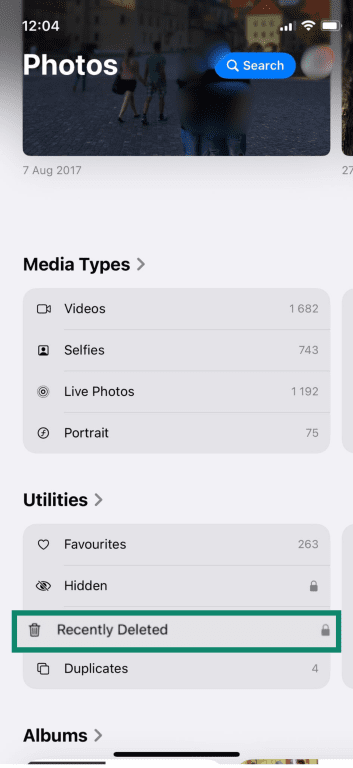
- Scroll down until you see the Utilities section and tap Recently Deleted.
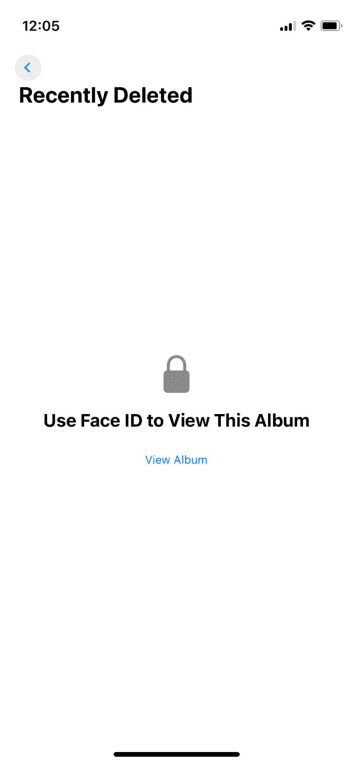
- Tap View Album, then use Face ID, Touch ID, or your passcode to unlock the folder.
- Tap on the photo or video you want to recover, then tap Recover.

Recover deleted files in the Files app
- Open the Files app and tap the Browse tab.
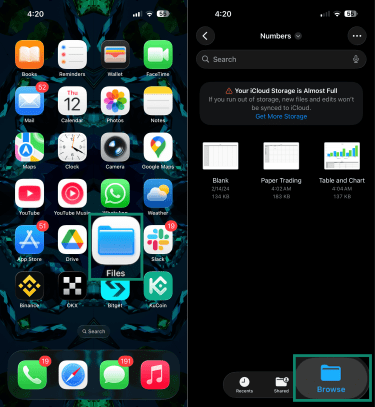
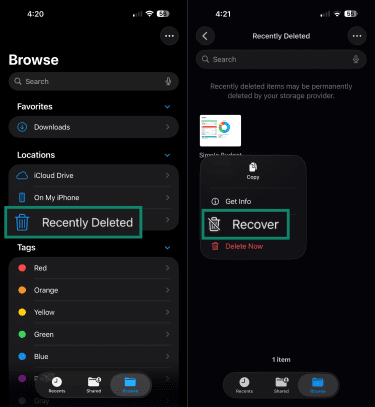
- Under Locations, tap Recently Deleted, then touch and hold the file you want to recover, and tap Recover.
Recover deleted notes
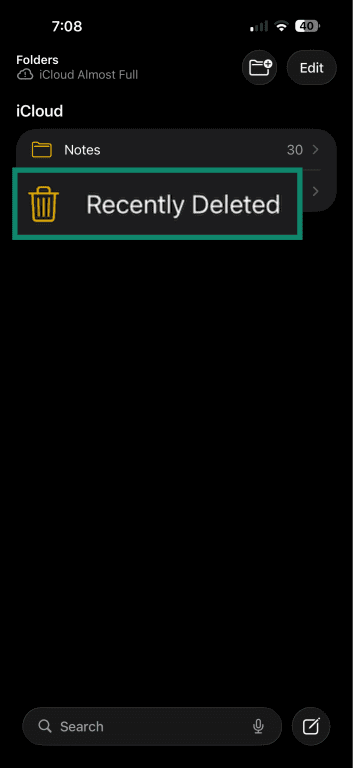
- Open the Notes app and navigate back to your Folders list. Tap the Recently Deleted folder.
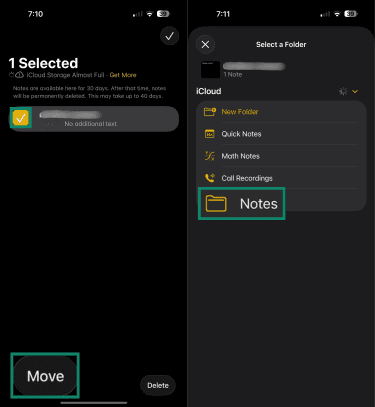
- Select the item you want to recover and tap Move (or the folder icon). Tap Notes. This will move the deleted item back to your note list.
Method 2: Restore deleted files from iCloud Backup
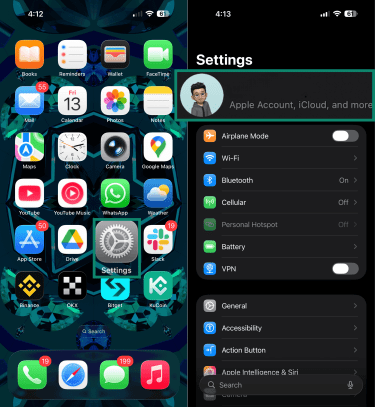
Restoring from an iCloud backup can recover certain types of data, but it has significant limitations for deleted files and requires erasing your entire iPhone first. Before attempting this method, it's important to understand what iCloud backups do and don't include. iCloud backups contain device settings, Home Screen layout, and app data that doesn't already sync to iCloud. However, if you use iCloud Photos, iCloud Drive, Messages in iCloud, or iCloud-synced Notes (which most users have enabled by default), your photos, files, and notes sync separately and aren’t restored from the backup in the same way. Because deletions sync across those services, restoring a backup won't restore photos, notes, or files that were deleted from these iCloud-synced services. This method is most useful for recovering app data from third-party apps (like chat histories or game progress), messages if Messages in iCloud was turned off, or photos, files, and notes that were stored locally and not syncing to iCloud at the time of the backup.- Go to Settings and tap your name at the top.
- Tap iCloud and go to iCloud Backup.
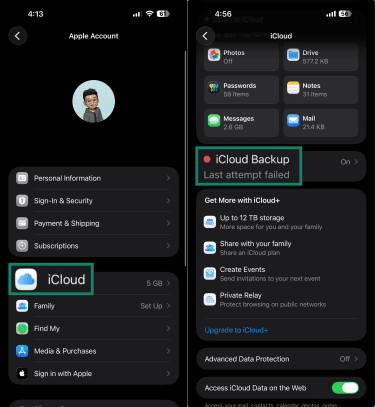
- Check whether a backup exists from a date before the file was deleted. If no suitable backup is available, this method won't help.
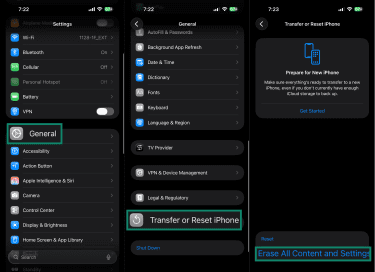
- If a suitable backup exists, go to Settings > General > Transfer or Reset iPhone > Erase All Content and Settings.
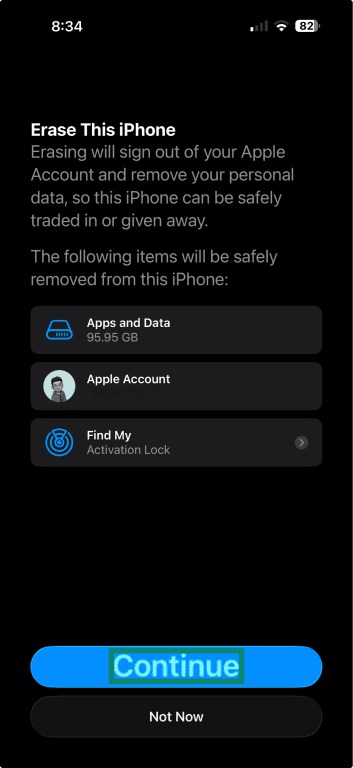
- Tap Continue and wait for the iPhone to erase and restart.
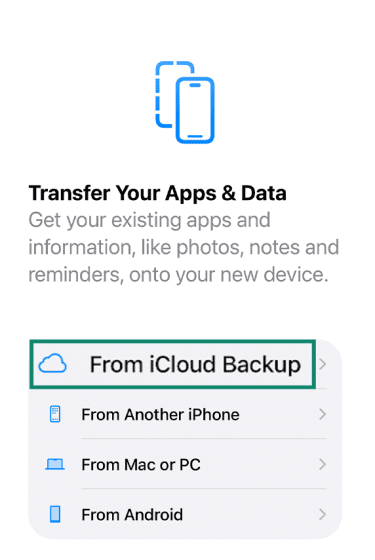
- When the Hello screen appears, follow the setup steps until you reach Transfer Your Apps & Data, then tap From iCloud Backup.
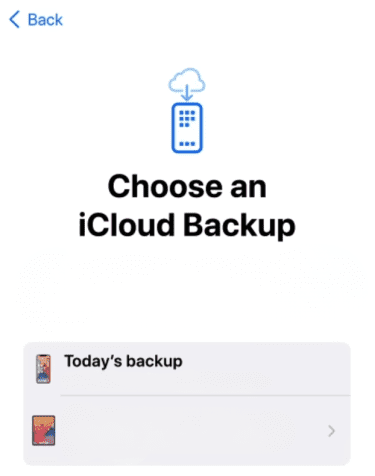
- Sign into your Apple Account and select the backup from before the deletion.
- Wait for the restore to complete. Keep your iPhone connected to Wi-Fi while the progress bar finishes.

- After setup completes, apps and other content will continue downloading in the background. Stay connected to Wi-Fi and power until the process finishes.
Method 3: Restore deleted files from a computer backup
This method is best for users who regularly back up their iPhone to a Mac or PC using Finder, Apple Devices, or iTunes, and who have a backup from before the deletion. Encrypted computer backups can include extra data such as saved passwords, Wi-Fi settings, website history, Health data, and call history. Learn more: How to back up files and encrypt them. However, like iCloud backups, computer backups don't include data that was already syncing to iCloud (such as iCloud Photos, iCloud Drive files, and iCloud-synced Notes). If the deleted file was managed by one of those services, this method won't recover it. Restoring from a computer backup replaces the iPhone's current data with the backup version, so only use this method if you're confident the backup was created before the file was deleted.Restore with Finder on Mac (macOS Catalina or later)
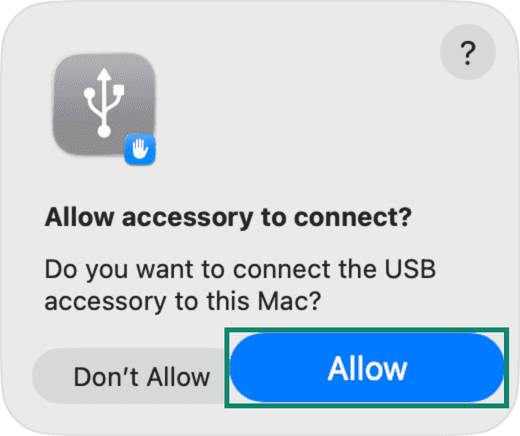
- Connect your iPhone to your Mac via USB. Tap Trust on your iPhone if prompted. If the Allow accessory to connect? window pops up on your Mac, click Allow.
- Open Finder and select your iPhone in the sidebar. Click General, then click Restore Backup…
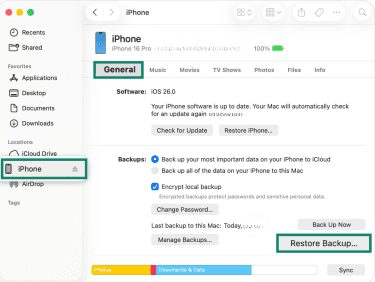
- Choose the correct backup from the list. If the backup is encrypted, enter the password when prompted, then click Restore.
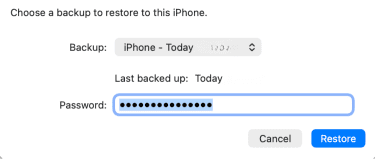
- Wait for the process to finish. Keep your iPhone connected after it restarts and don't disconnect until syncing completes.
Restore with iTunes on Windows
On Windows, Apple now offers the Apple Devices app as the primary tool for managing your iPhone. If you don't have it, you can still use iTunes.- Connect your iPhone to your PC via USB.
- Open the Apple Devices app (or iTunes if Apple Devices isn't installed). Select your iPhone.
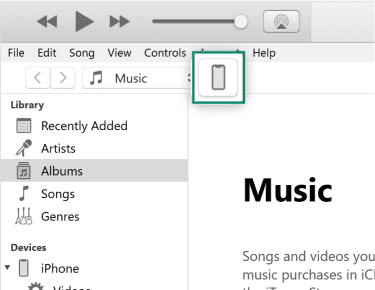
- Click General (in Apple Devices) or Summary (in iTunes). Click Restore Backup. If the backup is encrypted, enter the password when prompted.
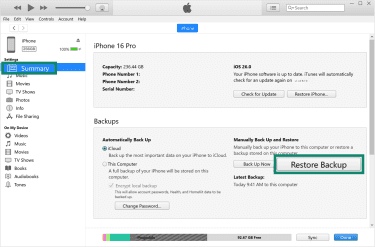
- Wait for the restore to finish. Keep your iPhone connected after it restarts and don't disconnect until syncing completes.
Method 4: Recover deleted files from iCloud.com
This method is best for anyone who deleted files from an iCloud-synced service (Photos, iCloud Drive, Notes) within the last 30 days and wants to recover them without erasing an iPhone. On iCloud.com, you can recover deleted files from iCloud Drive and supported apps, recover deleted photos and notes through their own Recently Deleted sections, and restore archived versions of contacts, calendars, reminders, and Safari bookmarks Where to go on iCloud.com:- iCloud Drive files (including Pages, Numbers, Keynote): icloud.com/iclouddrive
- Photos and videos: icloud.com/photos
- Notes: icloud.com/notes
- Contacts, calendars, reminders, and bookmarks: icloud.com/recovery
Recover files from Recently Deleted (iCloud Drive, Photos, Notes)
iCloud Drive files, photos, and notes remain in Recently Deleted for up to 30 days before being permanently deleted.- Open the relevant page on iCloud.com and sign into your Apple Account.
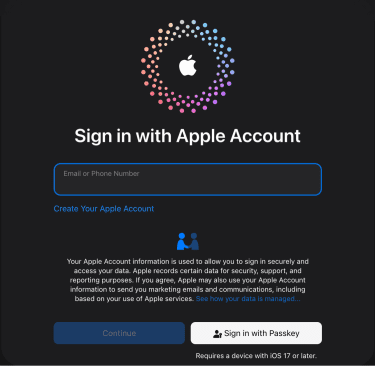
- Select Recently Deleted in the sidebar or folder list.
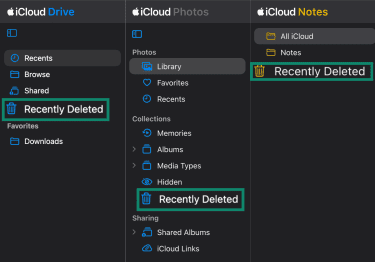
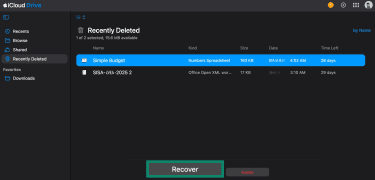
- Choose the files, photos, or notes you want to restore, then click Recover. Recovered items return to the folder they were in before deletion.
Restore contacts, calendars, reminders, or bookmarks
Apple automatically archives older versions of this data and lets you restore them from iCloud.com. Restoring contacts, calendars, or reminders replaces the current version across synced devices, though Apple saves the current version first so it can be reversed later. Bookmarks are also restored from archived versions in Recovery.- Go to icloud.com/recovery and sign into your Apple Account.
- Click the Data Recovery tab. Select the type of data you want to restore: Restore Contacts, Restore Calendars (combined with reminders), or Restore Bookmarks.
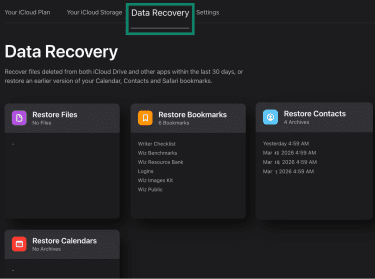
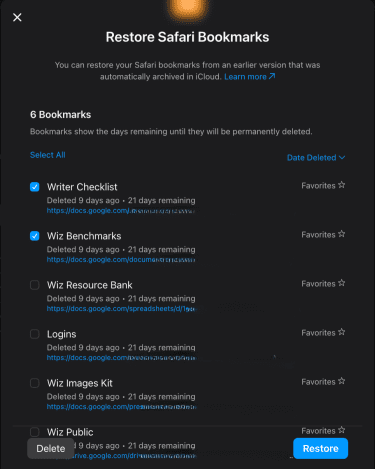
- For contacts, calendars, and reminders, review the archived versions listed by date and click Restore next to the version from before the data was lost. For bookmarks, select the archived version you want to restore, then click Restore.
Method 5: Check trash folders in apps
This method is best for users who store files in third-party cloud services (Google Drive, Dropbox, OneDrive) or share files through Messages. It isn’t a traditional recovery method. Instead, it helps find copies that may still exist in cloud-service trash folders, shared conversations, or other synced locations.Recover files from cloud storage apps
If you use cloud services like Google Drive, Dropbox, or OneDrive, files stored there exist independently of your iPhone. Even if you deleted a file locally, the cloud copy may still be intact. You can access these services directly through Apple's Files app. To enable a cloud service in Files:- Install and sign into the cloud storage app on your iPhone.
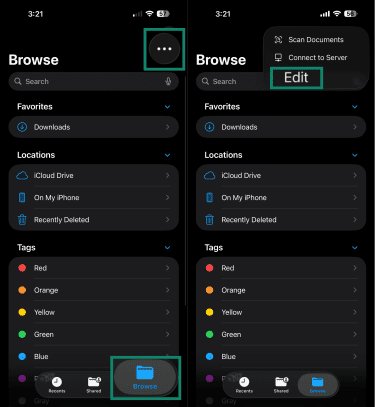
- Open the Files app and tap Browse. Tap the More button (three dots), then tap Edit.
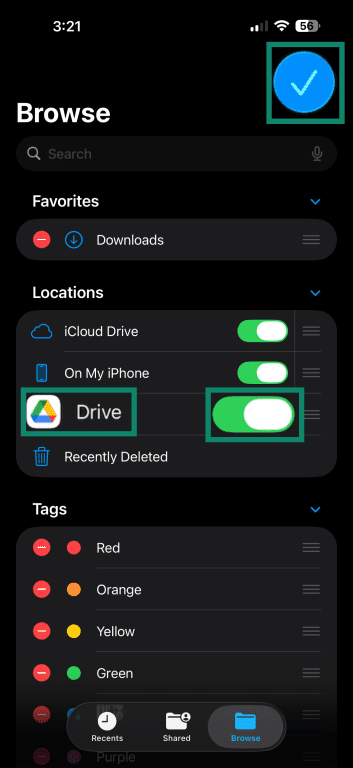
- Toggle on the cloud storage app, then tap the blue tick on the top right to confirm changes.
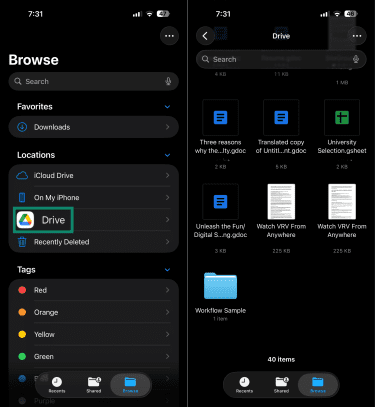
- Go back to the Browse tab. The cloud service now appears under Locations. Tap the cloud service to browse its contents.
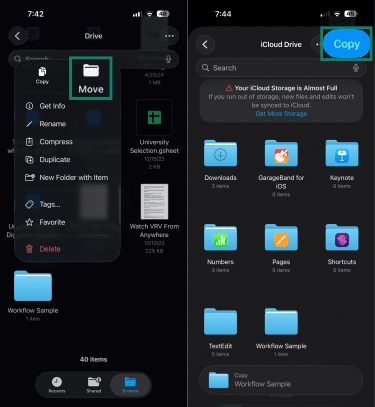
- If you want to move the file to your iPhone’s storage, long-press the selected file and tap Move. Select the iCloud folder you want to move to, then tap Copy.
Find attachments in Messages conversations
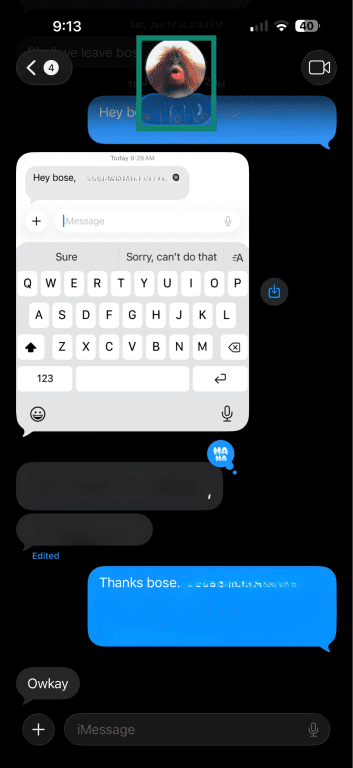
If someone sent you a file, photo, or document through Messages and the conversation still exists, the attachment may still be available there without needing to be recovered separately.- Open the Messages app and go to the conversation that originally contained the file.
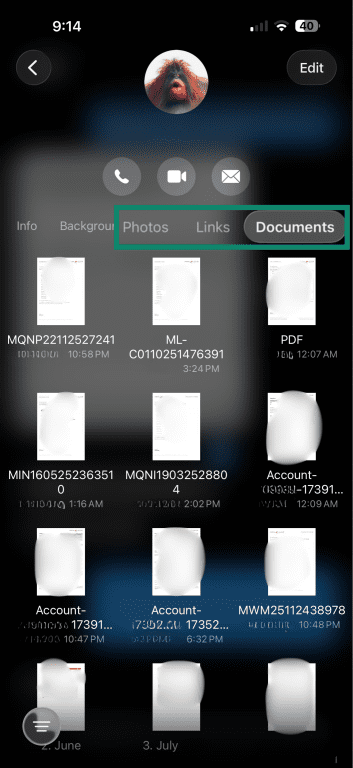
- Tap the contact or group name at the top.
- Swipe left through the shared content categories (Photos, Links, Documents, Locations) and tap the one you need. If a category doesn't appear, nothing of that type was shared in that conversation.
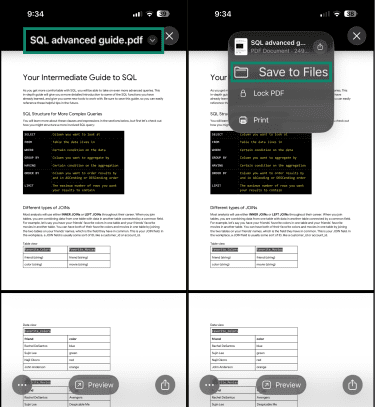
- To save a photo or video, tap Save to Files. For other attachments, touch and hold the item to see the save and share options.
 Also read: How to clear cache on iPhone and speed things up.
Method 6: Use iPhone data recovery software
This method is best for anyone who wants to extract specific data from an existing backup without doing a full device restore, or who wants to check whether deleted data is still available in backups or app databases. However, it’s important to set realistic expectations about what these tools can actually do. Many third-party tools advertise the ability to "scan your iPhone" and recover deleted files. While these tools exist and some are made by reputable developers, their capabilities on modern iPhones are significantly more limited than their marketing suggests.Why recovery from modern iPhones is limited
On Apple devices with Data Protection, each file is protected with a unique per-file key, and the Secure Enclave helps manage key material such as the user keybag. In practice, this makes traditional low-level “undelete” scanning far less effective on modern iPhones than it was on older devices and file systems.What these tools actually do
Many recovery tools work mainly by analyzing an existing iPhone backup, creating a backup through Apple-supported connection methods, or scanning iCloud or computer backups for recoverable items. Some can let you preview and extract specific data, such as messages, photos, or app content, without restoring the entire backup to the device, which can be genuinely useful.If you decide to try recovery software
If you've exhausted Apple's built-in options and want to try third-party software, keep these points in mind:- Download software from trusted sources: Prefer official app stores or well-known developers to reduce the risk of malware.
- Check the developer and reviews: Look for clear documentation, regular updates, and credible user feedback.
- Review privacy policies before installing: Make sure the software clearly explains how device or backup data is handled.
- Avoid tools that ask for unnecessary permissions: A recovery tool should only request access needed to scan the device or backup.
- Be cautious with features labeled “restore”: Restoring from a backup can replace current device data, while a factory restore can also erase the device and reinstall iOS.
- Keep backups before using recovery tools: Creating a fresh backup protects your existing data in case something goes wrong during recovery.
Method 7: Get help from Apple Support or professional recovery services
This method is best for users dealing with hardware problems that prevent normal access to their iPhone, or who need guided help from Apple with troubleshooting and restore procedures. This is not a method for recovering permanently deleted files; it's for situations where the data likely still exists on the device, but you can't access it. If none of the previous methods worked, Apple Support or a specialized recovery service may be able to help, depending on the nature of the problem.When Apple Support can help
Apple Support is most useful when the issue involves the device itself rather than a deleted file. For example, Apple can assist if your iPhone won't start, gets stuck during an update or restore, or becomes disabled after too many incorrect passcode attempts. In these cases, Apple can walk you through recovery mode, restoring with a computer, or reinstalling iOS. Apple Support can also help when a backup restore fails or when a hardware issue requires service. If troubleshooting doesn't resolve the problem, Apple can arrange a repair through an Apple Store, an Apple Authorized Service Provider, or a mail-in service.When professional recovery makes sense
Professional data recovery becomes more relevant when the iPhone has physical or hardware damage that prevents normal access, for example, when it won’t power on or has board- or storage-level faults that stop iOS from loading. In those cases, specialized companies may sometimes be able to recover data that is still present on the device but inaccessible because of the hardware failure However, it's important to understand what professional recovery can and can't do on modern iPhones. These services can sometimes access data that's still on the device but inaccessible due to hardware failure. They can’t recover files that were permanently deleted before the hardware issue occurred, because iOS destroys the encryption keys for deleted files, and no amount of physical access to the storage can reverse that. Keep in mind that data recovery services are usually separate from standard Apple repair coverage. Apple says the cost of any data recovery attempt isn’t covered by the Apple Limited Warranty or AppleCare, and data recovery or reinstallation isn't covered under the warranty.How to prevent iPhone file loss in the future
Reducing the risk of data loss mostly comes down to avoiding a single point of failure. The following steps can help:- Turn on iCloud Backup: iCloud Backup creates a copy of the information on your iPhone that isn’t already syncing to iCloud. Automatic backups can run when the device is connected to power, on Wi-Fi, and locked.
- Back up your iPhone to a computer: A backup stored on a Mac or PC creates an additional copy of your data that can be restored if your device is replaced, lost, or damaged.
- Store important files in more than one place: Keeping an extra copy helps reduce the risk of permanent loss if something is accidentally deleted. Besides iCloud, you can also sync your data to reliable iCloud alternatives, including external drives.
- Monitor available iCloud storage: If iCloud storage becomes full, your device won’t back up to iCloud, and new photos, files, and other iCloud data may stop uploading or staying up to date.
FAQ: Common questions about iPhone file recovery
Can I recover permanently deleted files on an iPhone?
Once a file has been removed from Recently Deleted (either manually or after the 30-day window), it can only be recovered from an iCloud or computer backup created before the deletion. Without a backup, recovery is effectively impossible on modern iPhones because Apple uses hardware-backed encryption and per-file data protection.
How can I recover deleted files on an iPhone without a backup?
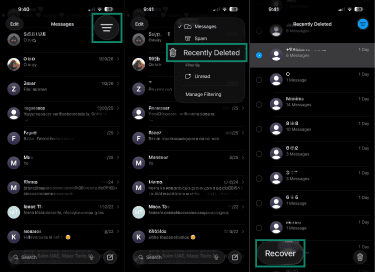
Check the Recently Deleted folder in the app where the file was originally stored, like Photos, Files, Notes, or Messages. This folder keeps deleted items for up to 30 days.
How can I recover deleted files on an iPhone without losing current data?
The safest options are the Recently Deleted folder within the relevant app or recovery through iCloud.com, as neither requires erasing your device. Restoring from an iCloud or computer backup, on the other hand, replaces all current data on your iPhone with the backup's contents.
Where are recently deleted files on iPhone?
They usually appear inside the app where the item was originally stored. Photos, Files, Notes, and Messages all have their own Recently Deleted area or recovery flow. In many cases, it appears in the app’s main folder, album, or collection list.
Can I recover deleted files from iCloud?
Yes, in some cases. On iCloud.com, deleted files from iCloud Drive and other supported apps can be recovered within 30 days if they were not permanently removed. Notes and Photos also have their own recovery flows. For contacts, calendars, reminders, and Safari bookmarks, iCloud.com lets you restore archived versions. Restoring contacts, calendars, or reminders replaces the current version in that category across synced devices.
Is iPhone data recovery software safe?
Safety depends on the tool. When you trust a computer to connect to your iPhone, the recovery software can access photos, videos, contacts, and other personal data, so it's important to use reputable tools from established developers and review their privacy policies before installing.
Take the first step to protect yourself online. Try ExpressVPN risk-free.
Get ExpressVPN