How to request your Amazon data and protect it


When you use Amazon’s apps and services, bits of information build up in your account over time. Requesting your data is a simple way to get clarity: it shows you what Amazon keeps, helps you spot outdated or unexpected information, and gives you a better sense of how your activity is being used to personalize your experience.
This guide provides step-by-step instructions to help you quickly and easily submit a data request and tips on how to protect your data while using Amazon’s services.
Why you should request your Amazon data
Requesting your Amazon data gives you a clearer sense of what’s happening behind the scenes with your account. This can be helpful in several ways:
- You see what Amazon has collected about you: Requesting your data lets you see the information Amazon stores about you, from purchases to Alexa recordings and device details.
- You can check how your information is being used: Seeing the raw data can help you understand what information Amazon is using to personalize recommendations, ads, and features.
- You gain more control over your privacy: Once you know what’s being tracked, it’s easier to adjust your privacy settings, delete old logs, or limit future collection.
- You can better understand your own habits: Your export can reveal patterns in your searches, purchases, viewing history, or voice interactions.
- You can prepare for account deletion: Having a copy of your data helps you keep useful information you’ll lose when the account is gone, like order history for returns or warranties, or records you might need for budgeting or taxes.
Whether you’re planning to delete your Amazon account, deactivate it, or simply clean things up, having a complete copy of your data helps you make informed decisions.
How to request your Amazon data
Requesting your data from Amazon is a straightforward process that only takes a couple of minutes. The guide below contains desktop screenshots, but the process is the same on a mobile browser.
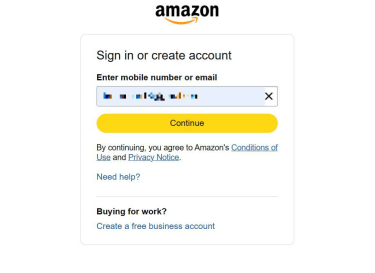
- Access Amazon’s data request portal and log into your account if required.
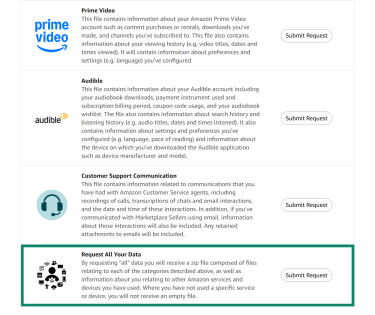
- Scroll through the different data categories and choose the information you want to download. To get all of it, scroll to Request All Your Data and click Submit Request.
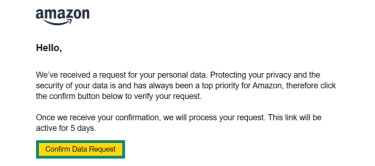
- Next, Amazon will send you an email with a confirmation link that stays active for five days. Open it and click the Confirm Data Request button.
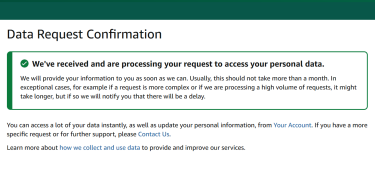
- Wait for Amazon to process your request. The timeframe for receiving your data is partially based on how much data there is. Amazon says it usually takes less than a month, but it may take longer.
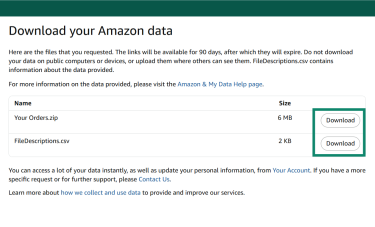
- When you receive your personal information, you have up to 90 days to download it. In the email you receive, click Download Data, verify your identity if necessary, then click Download next to the data you want.
File types and tools for viewing the export
Amazon provides your data in two formats: a .zip file and .csv files. The .zip archive contains folders with your data organized by category, each stored as a .csv spreadsheet. You can open the .zip file using any extractor on your computer, and you can view the .csv files with programs like Microsoft Excel and Google Sheets.
Troubleshooting common issues
If you experience any problems while requesting your data, such as delays or missing data, the best solution is to contact Amazon’s customer support. The tutorial below covers how to do this on the mobile app, but the steps are nearly identical on desktop.
- Open the All menu by tapping the three-line icon (☰) in the lower-right corner. On desktop, the menu icon is in the top left.
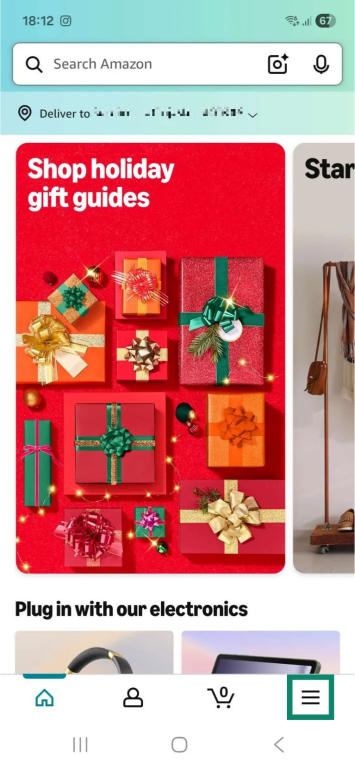
- Tap the Customer Service option.
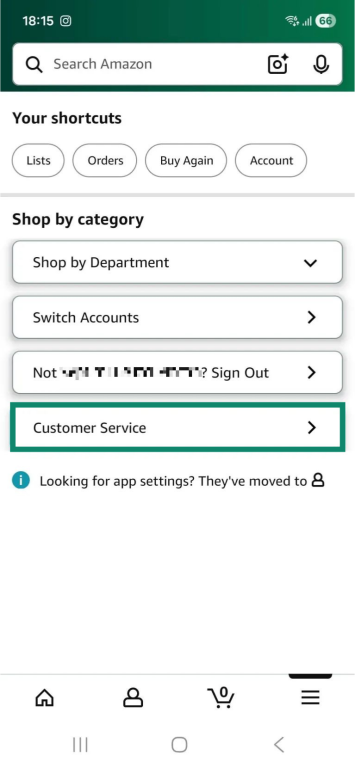
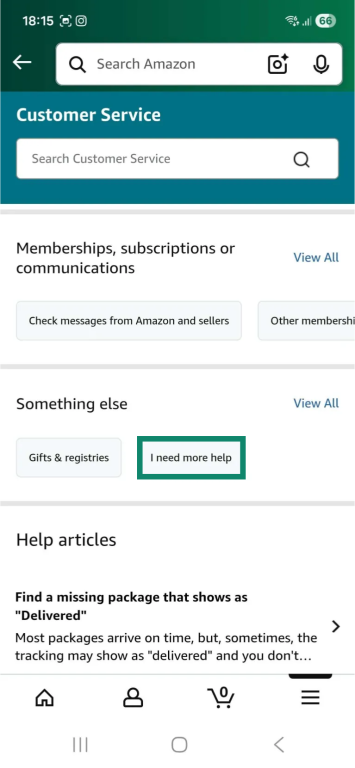
- Scroll down and tap I need more help under Something else. On desktop, you select Something else, then click I need more help.
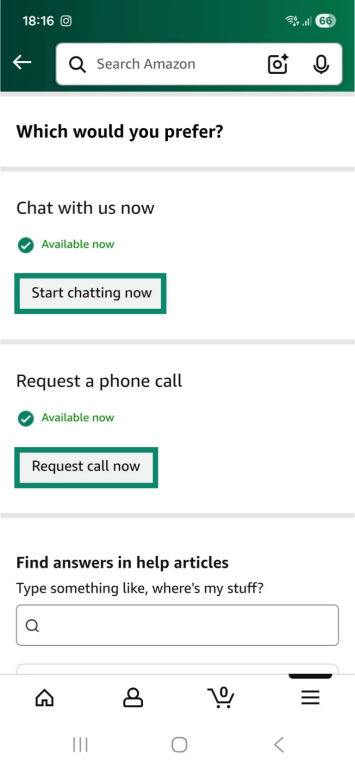
- Tap Start chatting now to talk with a support rep via live chat or Request call now if you prefer making a phone call.
What kind of data does Amazon collect?
Amazon records information you voluntarily provide, along with data it automatically collects when you interact with its services and related products. It uses this information to personalize your experience, improve or troubleshoot its platform, and deliver targeted product recommendations and ads.
Examples of collected data include:
- Personally identifiable information: This refers to details you provide when signing up, such as your name, email address, and phone number.
- Location data: Amazon logs your IP address, which can be used to determine your device’s approximate geographical location.
- Order, subscription, and payment information: The service records product names and delivery addresses, details about your payment methods, and data related to purchased subscriptions.
- Product and service usage: Amazon stores information about how you use related services, such as Amazon Prime Video, Amazon Music, Amazon Photos, and Audible.
- Search history: The platform records the search terms you enter, the resulting products you click on, the time and date of a specific search, and the images you upload or the barcode you scan for a search.
- Alexa device details: Amazon stores your Alexa interactions, including voice recordings and transcripts.
- Kindle, Fire TV, and Fire tablet data: The platform saves details and usage metrics about Amazon devices, like which Kindle book you purchased and which Fire TV and tablet apps you installed.
- Customer support communications: Amazon logs data about your interactions with its support reps, including the email you use to communicate with them.
How to protect your Amazon data
While Amazon is generally safe to use, you may want to take certain precautions to secure your personal information. In addition to downloading and reviewing all stored account data, you should also consider the following:
Turn off interest-based ads
Amazon lets you adjust your ad settings so you see fewer targeted ads both on and off the platform. The exact options vary depending on the device you’re using.
On desktop
- Click your profile name or hover over your profile name and click Account under Your Account.
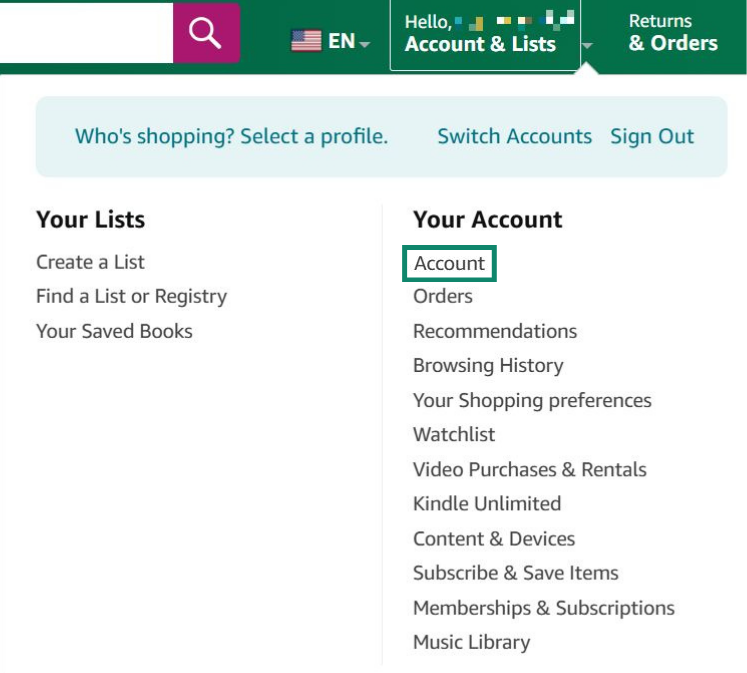
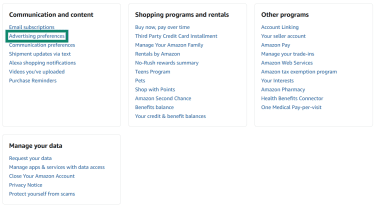
- Scroll down, locate Communication and content, and select Advertising preferences.
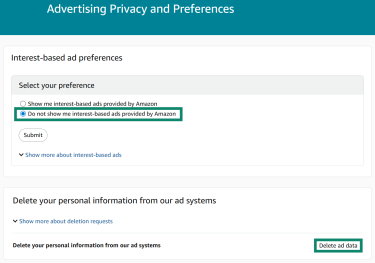
- Select the following option: Do not show me interest-based ads provided by Amazon. Make sure to also click the Delete ad data button to remove your personal information from Amazon’s ad systems.
On the mobile app
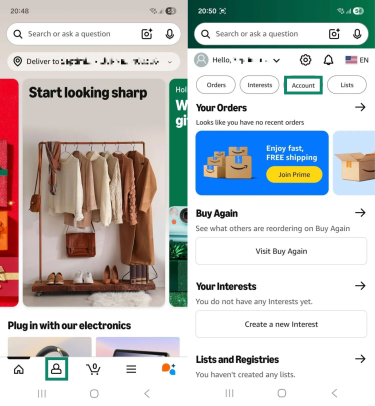
- On the home screen, tap the account icon at the bottom, then select the Account option.
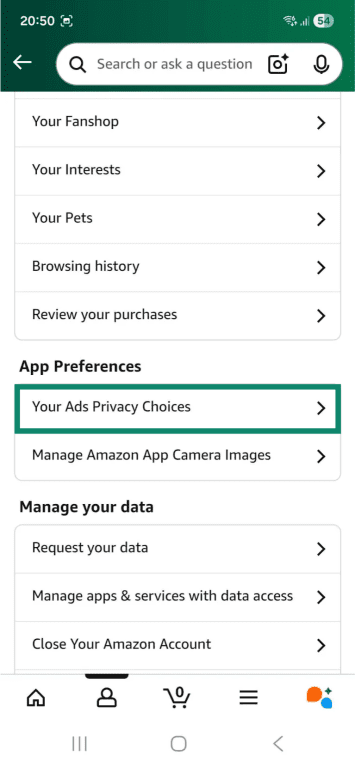
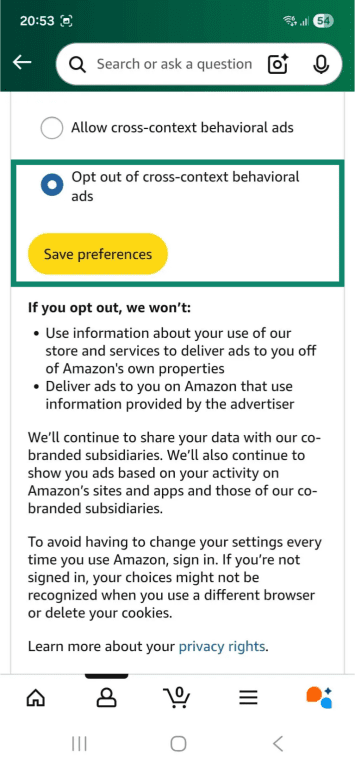
- Scroll down to App Preferences and tap Your Ads Privacy Choices.
- Select the Opt out of cross-context behaviors ads option, then tap Save preferences.
Enable two-step verification
This is Amazon’s two-factor authentication (2FA) feature, which adds an additional verification step to the login process. It helps secure your Amazon account and data if someone compromises your password. The process for turning on 2FA is similar on desktop and mobile. Here’s what you have to do:
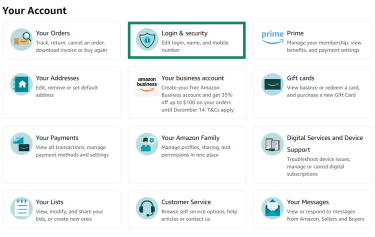
- Navigate to the account menu and select Login & security. On mobile, this option is found under Account settings.
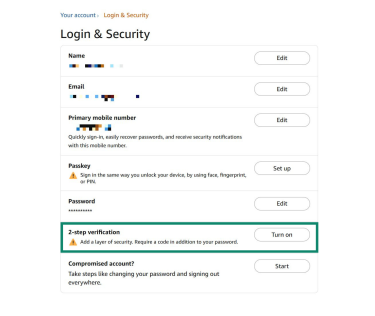
- Verify your identity if required, then select Turn on next to the 2-step verification option.
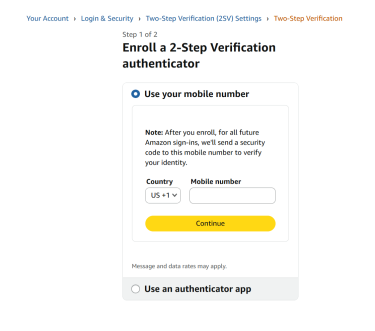
- Choose a 2FA method and follow the on-screen instructions to set it up.
Turn off your browsing history
Amazon keeps track of the items you view in your account’s browsing history, and it uses this data to personalize your experience. Disabling your browsing history prevents the platform from doing that. The following tutorial includes screenshots of the mobile process, but the steps on a desktop are similar. Here’s what you need to do:
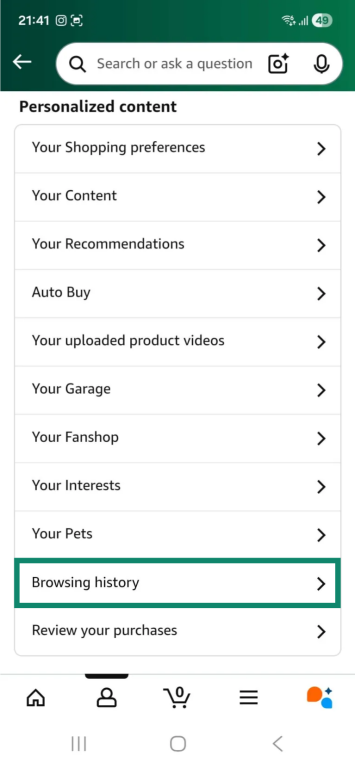
- Navigate to your account settings, scroll down, and tap Browsing history.
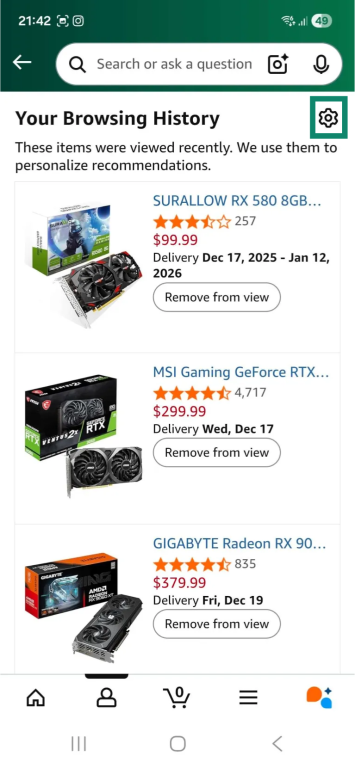
- Tap the gear icon to open the browsing history settings.
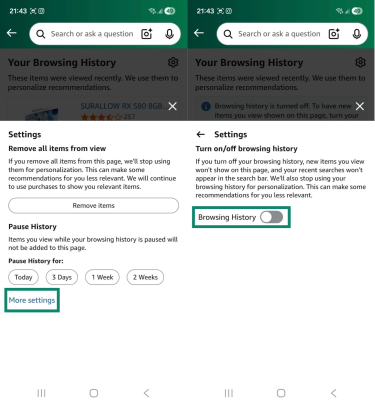
- Select More settings, then toggle Browsing History to the off position.
Delete Alexa voice recordings
Amazon saves your voice recordings and transcripts of your conversations when you use Alexa, primarily to improve its services. To delete all recordings and prevent future interactions from being stored, do the following in the Alexa app:
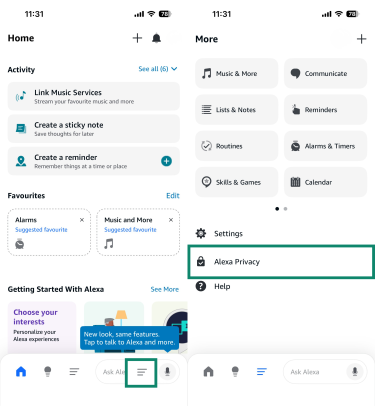
- Open the More menu, then select Alexa Privacy.
- Next, choose Manage Your Alexa Data.
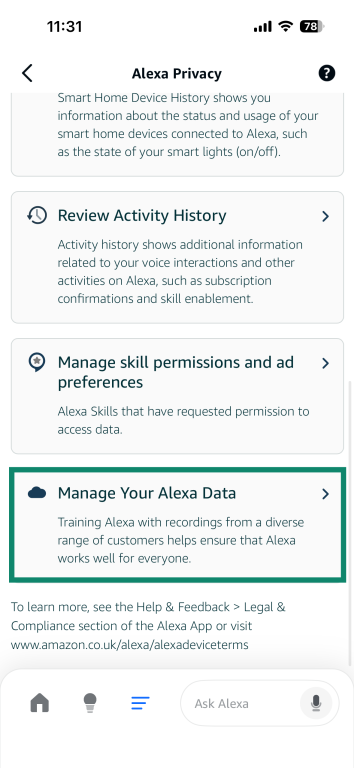
- Look for the Voice Recordings section and tap Choose how long to save recordings.
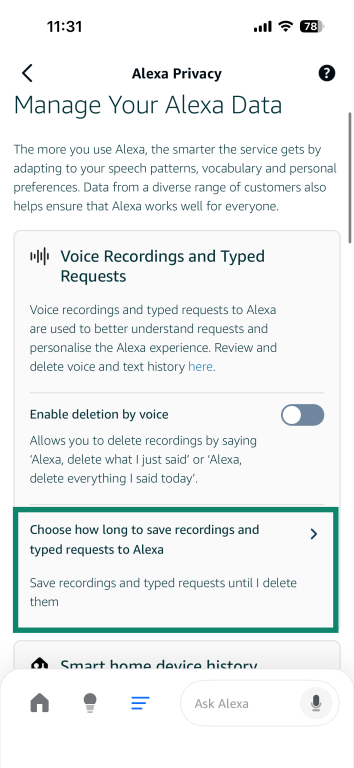
- Select the Don’t save recordings option.

Learn more: To find out how to better protect your data when using Alexa, read our Alexa privacy guide.
Use a VPN
A virtual private network (VPN) masks your IP address, a piece of information that Amazon collects, making it harder for the platform to infer your approximate location based on your network connection. It also shields you on public or shared Wi-Fi networks. With a VPN, your traffic is routed through an encrypted tunnel, making it more difficult for your internet service provider (ISP) or network admin to see that you’re using Amazon.
Learn about scams and phishing
Cybercriminals may target you with Amazon-related scams that can lead to financial loss or compromise your account and data. Be cautious of strangers pretending to be Amazon support representatives who contact you about fake account issues or try to pressure you into buying Amazon gift cards.
You should also avoid responding to emails that claim to be from Amazon but urge you to click suspicious links, share sensitive information, or download unexpected files. These are often Amazon phishing emails that may try to gain unauthorized access to your account, make fraudulent charges, or infect your device with malware.
FAQ: Common questions about requesting your Amazon data
What data does Amazon store about me?
Amazon stores a range of user data, including personally identifiable information you provide when signing up, details about your orders, and payment method metadata, as well as data on your approximate location. In addition, Amazon records your search history and collects information about your conversations with Alexa.
How long does it take to receive my data?
Amazon says it may take up to one month to receive your data, or longer if your request is complex and the company is processing a high volume of requests.
Can I delete all of my Amazon data permanently?
Yes, but only if you choose to also delete your Amazon account. If you’d first like to see what kind of personal information the platform stores, you can request your Amazon data.
What are my privacy rights under GDPR or CCPA?
Both the General Data Protection Regulation (GDPR) and the California Consumer Privacy Act (CCPA) give you the right to be informed about how a business, such as Amazon, collects and uses your personal information. They also allow you to access your data, correct it, or request that it be deleted.
Is Amazon selling my data to third parties?
According to Amazon’s privacy policy, the company doesn’t sell user data, but it may share information with third-party vendors you interact with on its platform, as well as with service providers such as delivery companies and payment processors. Amazon may also share user data when required by law or as part of corporate transfers. The company is transparent about these practices and allows you to request your data and delete it.
Should I use a VPN when accessing my Amazon data?
You should primarily use a VPN when accessing your Amazon data on public Wi-Fi, since these networks are often less secure. A VPN encrypts your traffic, making it harder for bad actors or network admins to see that you’re accessing Amazon.
Take the first step to protect yourself online. Try ExpressVPN risk-free.
Get ExpressVPN