 Celebrate with up to 80% off
Best VPN for Android TV and Android TV boxes
Connect securely and enjoy fast, private connections on your Android TV
- Get all the benefits of a VPN on a TV
- Download and get set up in seconds
- Enjoy uninterrupted, private viewing
30-day money-back guarantee*
*for first-time users

How ExpressVPN works with your Android TV
Android TV, from Google, is a special form of the Android operating system, optimized for smart TVs and streaming devices like Chromecast. Installing ExpressVPN on your Android TV or Android TV box (including Amazon Fire TV and set-top boxes like Nvidia Shield) connects your Android TV through secure, encrypted servers, helping you maintain privacy and prevent network slowdowns.
How to set up ExpressVPN for Android TV in 3 easy steps
-
![How to sign up for ExpressVPN]()
Step 1
Sign up for an ExpressVPN subscription on the order page.
-
![Step 2 of setting up VPN for Smart TVs.]()
Step 2
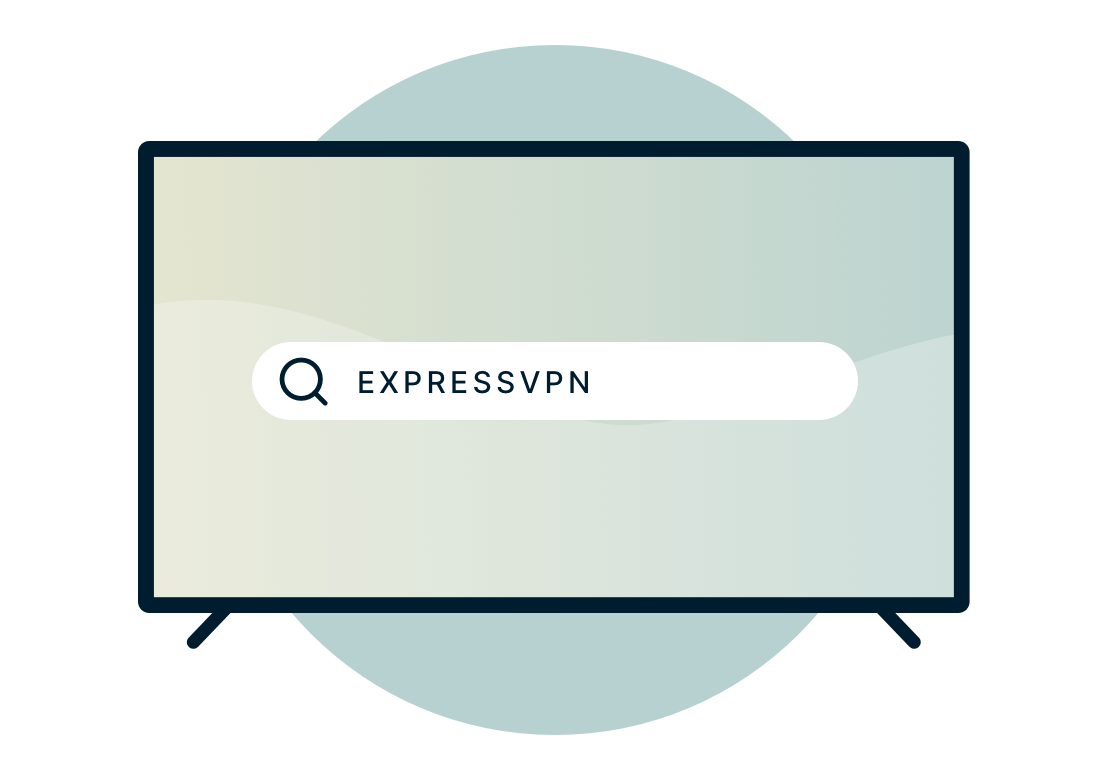
On your Android TV, go to the Google Play Store and search for ExpressVPN. Select the ExpressVPN app and click "Install," then "Open."
-
![Step 3 of setting up VPN for Android TV.]()
Step 3
Sign in to your ExpressVPN account. Connect to a secure VPN server to protect your connection.


Android TV: screen mirroring and casting
The best thing about using ExpressVPN with your Android TV is that you don’t need another device at all. Just download the ExpressVPN app directly onto your Android TV from the Google Play Store and start using your TV securely straight away.
But what if you’re already using another device, and you want to quickly see your work blown up on a bigger screen? Or maybe you’re watching video on your phone at someone’s house, and you want to share it with everyone there? Android TV devices are capable of receiving and displaying video sent from computers and phones, even if ExpressVPN isn’t installed on the Android TV.
Key features of the ExpressVPN app for Android TV
-
More VPN locations
Connect through secure, high-performance servers worldwide.
-
Optimized for speed
ExpressVPN constantly optimizes servers to deliver the fastest speeds possible.
-
Advanced leak protection
Leak protection is enabled by default, ensuring your privacy and security stay intact.
-
Multilingual interface
English not your first choice? Try ExpressVPN in any of 17 other languages.
Why you need an Android TV VPN

Reduce network slowdowns
Have you noticed slow speeds when loading videos? This might indicate that your internet service provider (ISP) is intentionally slowing or “throttling” your internet connection.
Activities like streaming demand high bandwidth. As a result, ISPs might inspect your data and restrict download speeds if they detect high-bandwidth activity. This results in slower streaming speeds for you, ruining your Friday night.
With ExpressVPN activated on your Android TV device, your ISP won’t be able to inspect the data packets, so it won’t be able to throttle that traffic based on activity type.

Keep your device (and data) safe
Smart TVs, such as Android TV boxes, require access to the internet. This can expose any sensitive data contained on your Android TV device, such as your personal information, to malicious third parties. ExpressVPN helps add an extra layer of security, protecting your privacy while you stream shows, sports, and more on Android TV.

Stay connected on every network
Whether you’re at home, at work, or on public Wi-Fi, ExpressVPN helps maintain a secure and stable connection. Our encrypted servers protect your data and ensure smooth, uninterrupted online access.
FAQ: Android TV and VPN
What is Android TV?
Android TV is an operating system designed by Google, optimized for use by smart TVs and streaming devices. It is based on Android, the operating system that runs on phones and tablets. The term Android TV is also sometimes informally used to refer to a television that is running software based on Android, but there is no single product that is officially called an “Android TV,” and Android-based smart TVs come from several manufacturers, including Sony, Hisense, Xiaomi, Skyworth, TCL, Panasonic, and Philips.
What are Android TV boxes?
Android TV boxes are external devices running Android-based software that can be plugged into any television. Some take the form of a traditional set-top box, while others are dongles. There is no single product that is the “Android TV box,” and they are produced by many different manufacturers. Some devices categorized as Android TV boxes actually run other variants of Android, like the Amazon Fire family of products, but the takeaway is the same: They can install and run Android apps, such as ExpressVPN, just like a phone can. Other popular Android TV boxes are the Nvidia Shield, Xiaomi Mi, and Chromecast With Google TV.
Which Android TV box is best?
The box that works best for you is likely to boil down to a comparison of price vs. features. Entry-level devices can cost less than 50 USD. Nvidia Shield is popular with gamers, while Amazon Fire devices may make more sense if you’re already an Amazon household. In any case, all Android TV devices can download and install ExpressVPN, which means security whenever you use your device.
Does ExpressVPN work on all smart TVs?
If your smart TV is marketed as running Android TV, it should be able to run ExpressVPN for Android with no issues. But ExpressVPN offers solutions for all kinds of smart TVs, including those that cannot install any VPN app. For example, any device with an internet connection can connect to ExpressVPN through a VPN-enabled Wi-Fi router. Check out our complete guide to getting ExpressVPN on your TV, or contact support for advice on your specific situation.
Is Android TV different from Google Chromecast?
Yes. Android TV is an operating system that’s available on a variety of devices, including smart TVs, set-top boxes, and digital streaming devices. Chromecast is one such streaming device that of course runs on Android OS (not to be confused with third-generation Chromecast With Google TV, which launched in late 2020 as the successor to Android TV).
Can I use ExpressVPN on other devices at the same time?
Yes! ExpressVPN is available on a wide array of devices including computers, smartphones, and game consoles. As many as 14 devices can connect to ExpressVPN simultaneously with a single subscription. And if you install ExpressVPN on your Wi-Fi router, every device connected to that router will be protected, no matter how many you have.
Is there a free trial of ExpressVPN?
Every ExpressVPN account comes with a risk-free money-back guarantee. First-time subscribers can enjoy the full-featured version of ExpressVPN for up to 30 days and still get a full refund.
Should I use a free Android TV VPN?
We advise against using a free Android TV VPN. Of course, not every free VPN is problematic. However, if a VPN does not charge you a fee, be aware that the VPN must use other ways to make money to run their service.
A free Android TV VPN might do the following to monetize your internet traffic without your knowledge:
- Inject targeted ads and spam into your browser
- Log your browsing history and sell it to advertisers
- Make records of your usernames, passwords, and bank details
- Steal your bandwidth
That’s why we recommend you use a paid VPN, such as ExpressVPN. There’s no free VPN that can match ExpressVPN’s speed, security, and quality of service.
Is it legal to use a VPN with an Android TV box?
Yes! It is legal to use a VPN with an Android TV box. You can legally download the ExpressVPN app from Google Play on your Android TV.
How do I sideload a VPN on an Android TV box?
If the ExpressVPN app is unavailable for download on your Android TV, you can sideload the app instead.
1. Download the APK
- On your computer, go to the ExpressVPN setup page and download the APK file.
2. Install a file manager on your Android TV
- On your Android TV, open Apps and search for File Commander.
- Select Install and then Open. (ExpressVPN isn’t affiliated with third-party apps.)
3. Transfer the APK to your Android TV
- In File Commander, select PC File Transfer.
- Enter the IP address shown into your computer’s browser.
- Open Internal storage > UPLOAD FILES.
- Select the ExpressVPN APK you downloaded and upload it. The file is now on your Android TV.
4. Enable installation from unknown sources
- Press Home on your remote > Settings.
- Go to System > About.
- Select Android TV OS build repeatedly until you see “You are now a developer!”
- Return to Settings > Apps > Security & Restrictions > Unknown sources, and enable it for File Commander.
5. Install the APK
- Open File Commander > Internal storage.
- Select the ExpressVPN APK and choose Install.
Once installed, open ExpressVPN from your apps.
Why choose ExpressVPN?
-
TrustedServer technology
Audited to confirm privacy protections, TrustedServer sets a new standard for security.
-
Get set up right away
Connecting to ExpressVPN is quick and easy. Just sign up, download, and connect!
-
Prevent activity-based slowdowns
ExpressVPN helps you reduce bandwidth-based ISP throttling and minimize buffering.
-
Enhance your privacy
Encrypt your connection to reduce tracking of your online activity and metadata.
-
Private connections across networks
Securely connect on any network.
-
Live chat support
Contact Support around the clock if you have questions about ExpressVPN on any device.
Try ExpressVPN for Android TV today
New users: try ExpressVPN for Android TV today with a 30-day money-back guarantee.